WORLD OF TECHNOLOGIE : Learn more and more about inventions
Showing posts with label Phone. Show all posts

Thursday, 13 March 2014

How to replace the screen of the iPhone 5 in 9 steps

We knew since its release, the touchscreen of the iPhone 5 is much easier to replace, since it is readily accessible, unlike the 4 and 4S models where we had to disassemble the entire apparatus to gain access.

The operation is done in several steps:
                            
  1. - Remove the screws on the connector 
  2. - Take the screen with a suction cup 
  3. - Remove the metal shields covering the sheets 
  4. - Disconnect the 3 cables tablecloths 
  5. - Retrieve items damaged screen (screen protector shield assembly and headphones) 
  6. - Recover the front camera and proximity sensor 
  7. - Retrieve the Home button 
  8. - Put these items on the new screen identical 
  9. - Re-assembled and the screen and replace the screws 
Obviously, each stage has its level of complexity, and iMore site offers a short video describing handling.


Wednesday, 12 March 2014

How to avoid mobile phone radiation dangerous

No comments

How to avoid mobile phone radiation dangerous

Here are 12 good habits to adopt to limit its exposure to harmful radiation from mobile phones can cause hearing impairment or vision .

Mobile Phones and Health: 12 tips to avoid risks DAS
For ten years, the radio frequencies emitted by mobile phones are subject to various studies and research to highlight the potential harmfulness of these waves . Measured in watts per kilogram (W / kg) , the famous SAR ( specific absorption rate for ) indicates the amount of energy absorbed by the body. European legislation has set a ceiling of 2 W / kg while across the Atlantic the maximum allowed radiation is 1.6 W / kg.

If WHO wants to be reassuring and a decree dating from 2003 requires manufacturers to indicate the DAS on their products, according to the precautionary principle , it is better to choose a mobile with the lowest possible SAR and follow these recommendations. See our ranking of mobile according to their SAR .
                              
1 - Teens under 15 should not have access to a mobile . This basic rule is not, however little or respected by parents. The adolescent is particularly vulnerable to electromagnetic radiation.

2 - Avoid contact of a cell phone with the belly of a pregnant woman. Again, it is a basic common-sense advice , the cells of the embryo are very sensitive to radiation emitted by mobile.

3 - Avoid approaching the mobile phone within 20 cm of cardiac or other metal implants implant.

4 - When buying a new laptop , choose a model with SAR value is as low as possible , preferably less than 0.7 W / kg.


5 - Avoid wearing your mobile at or against the heart , armpit , hip or genitals ...

6 - Prefer the use of a wired headset to keep mobile phones away from your brain and your ear. Better to use a wired rather than a wireless headset which delivers waves headset.

7 - Limit the number and duration of calls. On average, no more than 6 calls per day not to exceed 3 minutes each. The ideal is to meet an average time of 1 hour 30 minutes between each call.

8 - Telephone under conditions of maximum reception! If you make a call while you are receiving the wrong network , DAS issued by the notebook can be multiplied by 2 or 4 !

9 - Do not call the move.

10 - Do not call in the car or any other metal infrastructure. The effect of " Faraday cage " traps and reflects the waves emitted by the laptop.

11 - To avoid passive exposure to radiation, move away from the public when you make a call .

12 - Never store a lit or charging less than 50 cm from your head overnight phone.
For more information about the SAR and the risks associated with electromagnetic radiation , visit the Centre for Independent Research and Information on Electromagnetic Radiation

Monday, 10 March 2014

How to Use ROEHSOFT RAM Expander :

No comments

How to Use ROEHSOFT RAM Expander :

                                                
So file the steps below to increase the RAM of your Android smartphone now.
  1. Install the app on your device on which you wish to increase RAM
  2. Now after installing the app choose your default language.
  3. Now to increase RAM create a SWAP file by clicking on the SWAP Active  and enabling it
  4. After the process is finished just click on the  grey colored box and activate the swap file created.
  5. Congratulations you have successfully increased the RAM of your Android smartphone.
This increased ram will not show in the task manager but you can feel the change with the overall performance of the device which seems to be boost up. If you already have a decent ram them got might need to run some very heavy game to know the difference in performance. So I hope this post helped you in increasing the RAM of your Android smartphone.

Increase RAM using ROEHSOFT RAM Expander (Root Users)

                                                    
Your phone’s RAM is a very essential component which plays a vital role in the speed and the performance. if you have more RAM, it means the processor have more storage capacity to process more and more temporary functioning files, and hence it can freely work which ensures the device is fast enough. But if your RAM is low, the processing power of the device is affected. Like if you have a low RAM< you won’t be able to play high end games on your Android Smartphone, or even ti might lag while doing simple tasks such as seeing a video, typing a text etc. So if you are suffering from low RAM, and want to get rid, you are at the right place. By reading this post you will be able to know how could I increase the RAM
ROEHSOFT RAM EXPANDER :
This RAM expander app is one of the best app available in the play store which allows you to easily increase the RAM of your Android smartphone. So let’s begin with the process to increase RAM using ROEHSOFT RAM EXPANDER. Have a look at some of the features of this app to increase RAM of your device.
  1. Swap memory file upto 4 GB ( In simple words it can increase ram by 4 GB depending on your device and memory card too)
  2. Widget for PNP swap
  3. Detailed analysis of your memory and details about it
  4. Swappiness kernel parameter already set.
  5. Very easy to use and create swap file and really simple interface
  6. It will work with most of the Android devices.

Sunday, 9 February 2014

HOW TO DELETE ALL THE CONTACTS ON YOUR IPHONE AT ONCE

No comments

HOW TO DELETE ALL THE CONTACTS ON YOUR IPHONE AT ONCE

HOW TO DELETE ALL THE CONTACTS ON YOUR IPHONE AT ONCE

  You want to delete all your contacts from your iPhone at once? This article shows to  you the different ways to do that..
  • The Different Ways to Delete all your iPhone Contacts

    If you have contacts stored to your iPhone that you need to get rid of, you've come to the right place. Whether you need to delete one or all of them, there are more than way to delete the iPhone contacts:
    • From the Contacts app
    • From the Settings menu on the phone
    • Connecting to the computer to restore to factory settings
    • "Erase Contacts" app from Cydia (jailbroken phone only)
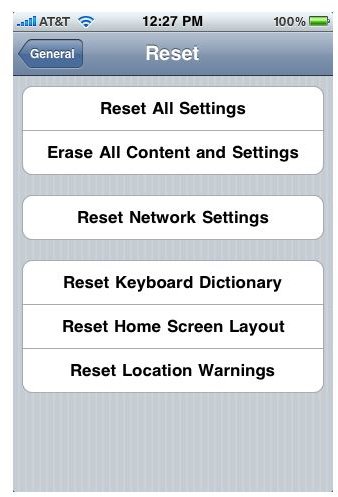
    You can be deleting a single contact from the contacts app on your phone. 'Erase All Content and Settings', an option in the Settings menu, will allow you to wipe any saved data from the phone; this will delete all iPhone contacts at once directly from your phone. You can also restore iPhone to factory settings from your computer which will also delete all contacts on iPhone at once. An additional option for jailbroken iPhones, is an app from Cydia called "Erase Contacts". We're going to take a look at how to do each of these.
  • How to Delete iPhone Contacts

    The Deleting individual iPhone contacts will can be done in the Contacts menu from your phone.
    You can use the steps below to delete an iPhone contact:
    1. From the home screen, open Contacts
    2. Select the contact you wish to delete
    3. Press "Edit" (in the upper right hand corner)
    4. Scroll to bottom of screen
    5. Press "Delete Contact"
    6. Press "Delete Contact" again to confirm
    Contact information screen Scroll to bottom for Delete Contact or Cancel 
    1. WARNING for Jailbroken iPhones

      Do NOT use the "Erase All Content and Settings" options (shown directly below) on a jailbroken iPhone. Users are reporting that this causes a jailbroken iPhone to become bricked. The safest way to delete all contacts on a jailbroken phone is one at a time or using a Cydia app that was designed for jailrbroken iPhones. The following method is completely safe to use on a standard iPhone that has not been jailbroken.
    2. How to Delete All Contacts on iPhone at Once

      Are you using a jailbroken iPhone?, read the warning above before trying any of these steps.
      Delete All Contacts from Your iPhone:
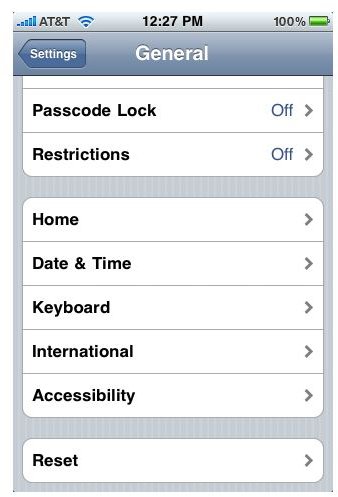
      1. Open Settings
      2. Select "General"
      3. Scroll to the bottom of General settings
      4. Select "Reset"
      5. Select "Erase All Content and Settings"
      6. Confirm by pressing "Erase iPhone"*
      *This option erases all data saved to the phone, including: contacts, music, apps, photos, etc. Make sure to sync your phone to your computer to create a backup prior to trying this method.
      Scroll to the bottom of 'General' settings. Select Select 

    3. Deleting All Contacts on iPhone from the Computer

      If you want to delete all contacts on your phone  frome youre computer , you must restore the phone to factory settings. Sync your iPhone to the computer and select "Restore". When prompted, confirm that you would like to restore to factory settings. This will erase all saved data from your iPhone (contacts, music, apps, photos, etc.) If you are new to restoring an iPhone and need a little more guidance, read Bringing an iPhone Back to How You Bought It for step by step instructions.
    4. Delete All Contacts from a Jailbroken iPhone

      Jailbroken iPhones with Cydia installed have an additional option to delete all contacts at once. The "Erase Contacts" app from Cydia will get the job done. Follow the steps below to use the app from Cydia:
      1. Open Cydia and search for "Erase Contacts"
      2. Install "Erase Contacts"
      3. Locate the "Erase Contacts" icon from your home screen (Contacts icon with a red 'x' through it)
      4. Select the "Erase Contacts" icon*
      *Launching the application will immediately erase all contacts from your phone without giving notice or asking you to confirm. Be sure to have a backup of your phone before downloading and trying this app.

    viber: free calls and messages for samsung Galaxy S

    No comments


    viber: free calls and messages for samsung Galaxy S

    programes for samsung Galaxy s 

    Program to make free Android calls Viber is a simple and easy to use program that lets you make free calls and send text messages to other users. The program identifies your phone number, and it is not necessary to transfer all contacts.


    Watch the below vidio for more information about this application 


    Thursday, 6 February 2014

    How to use WhatsApp on Android ?

    No comments

    How to use WhatsApp on Android ?

    I. Introduction to WhatsApp

    In this tutorial you will learn how to use WhatsApp Messenger ( Android ) uneapplication mobile multi- platform to chat for free with your contacts partoutdans the world. For this, the smartphone must be connected to the Internet via a 3G or WiFi connection. No SMS or MMS is deducted from your mobile plan .

    The application allows you to exchange text, photos, videos, voice messages , etc. .. Even if you are offline , you will receive your messages on your next connection.

    WhatsApp also offers the possibility to create groups up to 10 people to communicate more !
    Here is the official publisher's website :
    http://www.whatsapp.com/

    II . explanations


    1 . Configuration WhatsApp

    After you have installed and launched the WhatsApp application on your mobile from the Play Store , press " Agree and Continue sur "Accepter et continuer" :
    Comment utiliser WhatsApp sur Android ? image 0
    On the next screen , WhatsApp asks you to verify your phone number. Then select your country from the dropdown list and enter your number in the field that lies beneath. Then press "OK" :
    Comment utiliser WhatsApp sur Android ? image 1
    The audit should be carried out quickly.

    We then propose to fill your profile with your name (not visible to your contacts) and possibly a photo (visible by your contacts). Then press "Next" to continue:

    Comment utiliser WhatsApp sur Android ? image 2

    2 . Chat with someone

    You should now be in front of a screen as shown below , this is the main screen that lists all your deWhatsApp discussions here there is no obviously since I just installed the application.


    Now we will see how to chat with your contacts. How does it work ? It is rather simple, there is no invitation to send or anything since WhatsApp automatically detects your phone contacts who have already installed the application.


    To see which contacts have WhatsApp on their mobile and start talking , press the pencil icon at the top right :

    Comment utiliser WhatsApp sur Android ? image 3
    The list appears, tap a contact to open the chat window :
    Comment utiliser WhatsApp sur Android ? image 4
    Note that you also have the option to recommend to friends WhatsApp ...

    You can now chat with your contacts by typing your message in the box below and press "Send" :Comment utiliser WhatsApp sur Android ? image 5
    Your messages will appear on the right. A green check mark will appear to inform you that your recipient has received the message:

    Comment utiliser WhatsApp sur Android ? image 6
    Messages of your correspondent them appear on the left :
    Comment utiliser WhatsApp sur Android ? image 7
    You can send emoticons by pressing the corresponding button at the top right and selecting the desired emoticon :
    Comment utiliser WhatsApp sur Android ? image 8
    Note that notifications of new messages appear in the scroll bar as your phone when receiving a conventional SMS .

    3 . share

    Let us now share a picture , video, or other things that you can not necessarily send via MMS a simple base , this is part of the interest of WhatsApp .
    To do this, press the icon to bring up a trombone menu with 5 choices. From left to right you can send a picture, video, audio ( music or voice ) , location (via Google Maps) , a contact from your phone.

    For example, I chose to send a picture :
    Comment utiliser WhatsApp sur Android ? image 9
    It then offers me to take a picture with the camera or open the phone gallery to choose an image :
    Comment utiliser WhatsApp sur Android ? image 10
    It remains for me to select my image and press "OK" :
    Comment utiliser WhatsApp sur Android ? image 11
    The image will then be sent to the recipient :
    Comment utiliser WhatsApp sur Android ? image 12

    4. 4 . The menu of the chat window

    Pressing the menu button on your phone, you have access to several possible actions :


    Comment utiliser WhatsApp sur Android ? image 13
    You can view the contact, attach a file ( equivalent to what we have already seen in the previous step) , call the contact or changing the screen of the chat window background.

    By pressing "Next" you can block the contact, delete all messages , send the email discussion , add a shortcut on your Android desktop or search for a keyword in the discussion :
    Comment utiliser WhatsApp sur Android ? image 14

    Note: To unlock later contact , go to your WhatsApp contact list , tap and hold the contact finger and press " Unlock .. " .

    5 . Delete a discussion

    To delete a discussion , go to the main screen which is displayed a list of your discussions, and hold your finger on the one you want to delete finger. Then press "Delete Discussion " 
    Comment utiliser WhatsApp sur Android ? image 15

    6 . Change status

    To change your status on WhatsApp (visible by your contacts) , go to the main screen and press the menu on your phone then click "Status" button :

    Comment utiliser WhatsApp sur Android ? image 16
    You can either enter a custom status , or select a status among those we offer you:
    Comment utiliser WhatsApp sur Android ? image 17

    7 . Create a group discussion

    For group discussion on WhatsApp , go to the main screen and press the menu on your phone then click "New Group" button :

    Comment utiliser WhatsApp sur Android ? image 18
    Enter a subject and select the participants you want for the group. Then press "Create" :
    Comment utiliser WhatsApp sur Android ? image 19
    Now your group is created and you go directly to the chat window so that you can share with others.

    8 . Change their profile picture

    To change your profile picture on WhatsApp (visible by your contacts) , go to the main screen and press the menu button on your phone and then press "Settings" :Comment utiliser WhatsApp sur Android ? image 20
    Press "Profile" :
    Comment utiliser WhatsApp sur Android ? image 21
    It only remains for you to press through to add a picture or change 
    Comment utiliser WhatsApp sur Android ? image 22

    9 . Save discussions

    Know that your backup WhatsApp discussions every 24 hours on your SD card (daily at 4:00 to be precise) , but you can also manually back to make sure nothing is lost if you need to change or reset your Android phone phone .


    For that, go to the main screen and press the menu button on your phone and then press "Settings" 

    Comment utiliser WhatsApp sur Android ? image 23
    Press " Settings discussion " :
    Comment utiliser WhatsApp sur Android ? image 24
    Now you just press " Backup historical discussion " :
    Comment utiliser WhatsApp sur Android ? image 25

    Backups are stored on your SD card in a folder called WhatsApp .
    When you install WhatsApp again , it will automatically offer to restore the backup on your SD card.
    Entries RSS Comments RSS

    StatCounter


    Copyright © All about Inventions
    Powered by Blogger
    Design by N.Design Studio
    Blogger Theme by Lasantha - PremiumBloggerTemplates.com